JSON Formatter Guide: Why Formatting Matters
JSON formatter guide for developers — format minified JSON instantly, understand why formatting matters for debugging, and the best tools for every workflow.
You’re staring at a single line of JSON that’s 4,000 characters wide. A log entry, an API response, a webhook payload — something you need to read and debug right now. Without formatting, it’s unreadable. You can’t spot the missing field, trace the nesting, or find where the structure diverges from what you expected. The content is valid JSON; the problem is that it’s not human-readable.
This is what JSON formatting solves. It takes dense, compact JSON and adds consistent indentation and line breaks so the structure becomes visible. This guide covers when and why formatting matters, how to do it across different environments, and the common formatting decisions that trip developers up.
TL;DR: Paste any JSON into GoGood.dev Code Formatter — select JSON, choose indent size, and get formatted output instantly. For the command line:
echo '{"key":"value"}' | jq .
What JSON formatting does
JSON formatting (also called pretty-printing or beautifying) takes valid JSON and renders it with:
- Newlines after each key-value pair and array element
- Consistent indentation — typically 2 or 4 spaces per nesting level
- Stable key ordering (in some tools — not all formatters sort keys)
The JSON content is identical before and after. Formatting is purely a presentation change — it doesn’t add, remove, or modify any values. JSON.parse(minified) and JSON.parse(formatted) produce the same result.
Minified:
{"user":{"id":"usr_4d5e6f","name":"Alice Chen","role":"admin","permissions":["read:users","write:users"],"settings":{"theme":"dark","notifications":true}}}Formatted (2-space indent):
{
  "user": {
    "id": "usr_4d5e6f",
    "name": "Alice Chen",
    "role": "admin",
    "permissions": [
      "read:users",
      "write:users"
    ],
    "settings": {
      "theme": "dark",
      "notifications": true
    }
  }
}
The structure that was invisible in one line is immediately readable in the second form.
Why JSON formatting matters for debugging
Formatting is a precondition for effective debugging. Before you can spot what’s wrong in a JSON payload, you need to be able to read it. Three situations where this is critical:
Reading API responses: When an API returns a minified payload, your first move should be formatting it. You can’t visually diff {"status":"ok","data":{"items":[{"id":1},{"id":2}]}} against your expected structure without a formatted view. Formatted JSON lets you scan field names, check nesting depth, and spot missing or unexpected fields.
Debugging webhook payloads: Webhook bodies arrive as minified strings in logs. Formatting them turns a 2,000-character wall of text into a readable document where you can trace exactly what the sender sent versus what your handler expects.
Comparing JSON across environments: Formatted JSON with consistent indentation and key ordering is much easier to diff. Tools like GoGood.dev JSON Compare format both inputs before diffing — which means field renames, structural changes, and type differences are immediately visible in context rather than buried in a character-by-character diff.
How to format JSON — every method
Online formatter
GoGood.dev Code Formatter handles JSON alongside HTML, CSS, JavaScript, and SQL. Paste your JSON, select JSON mode, choose 2 or 4 space indent:
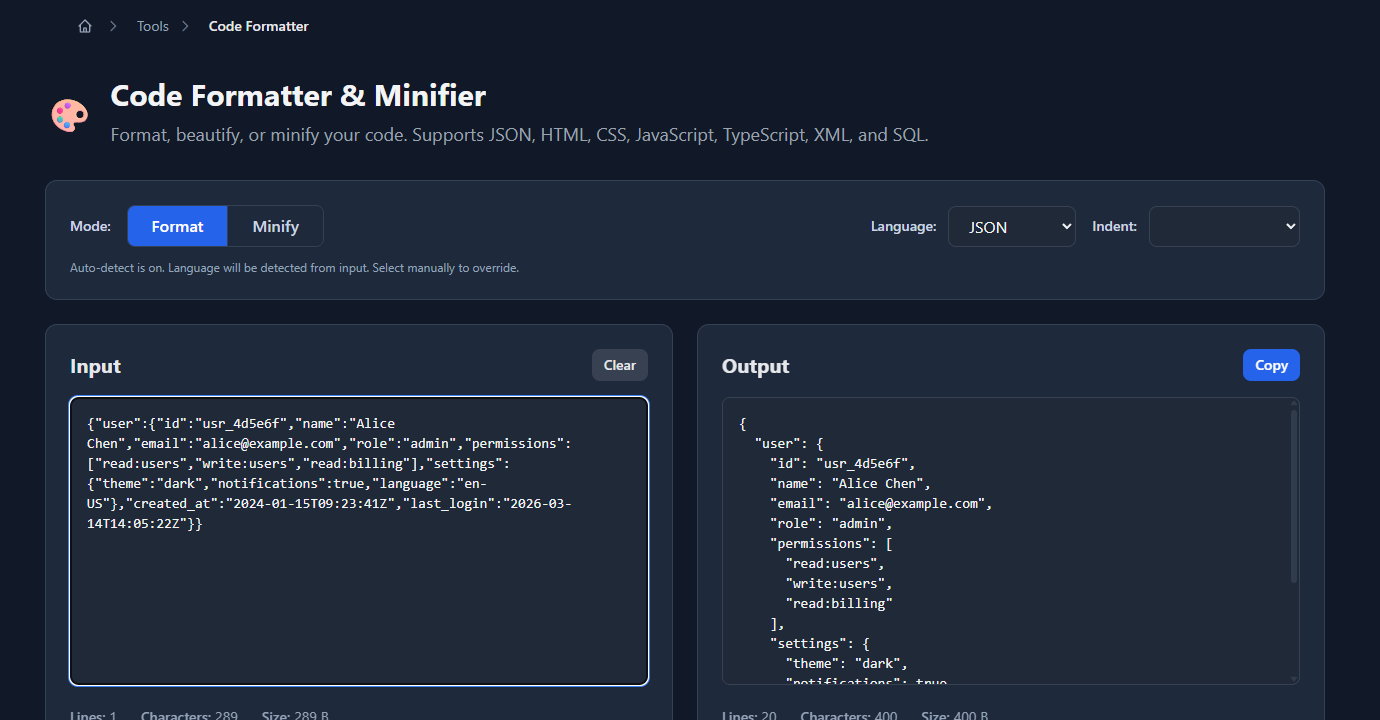
The formatted output appears immediately in the right panel, ready to copy:
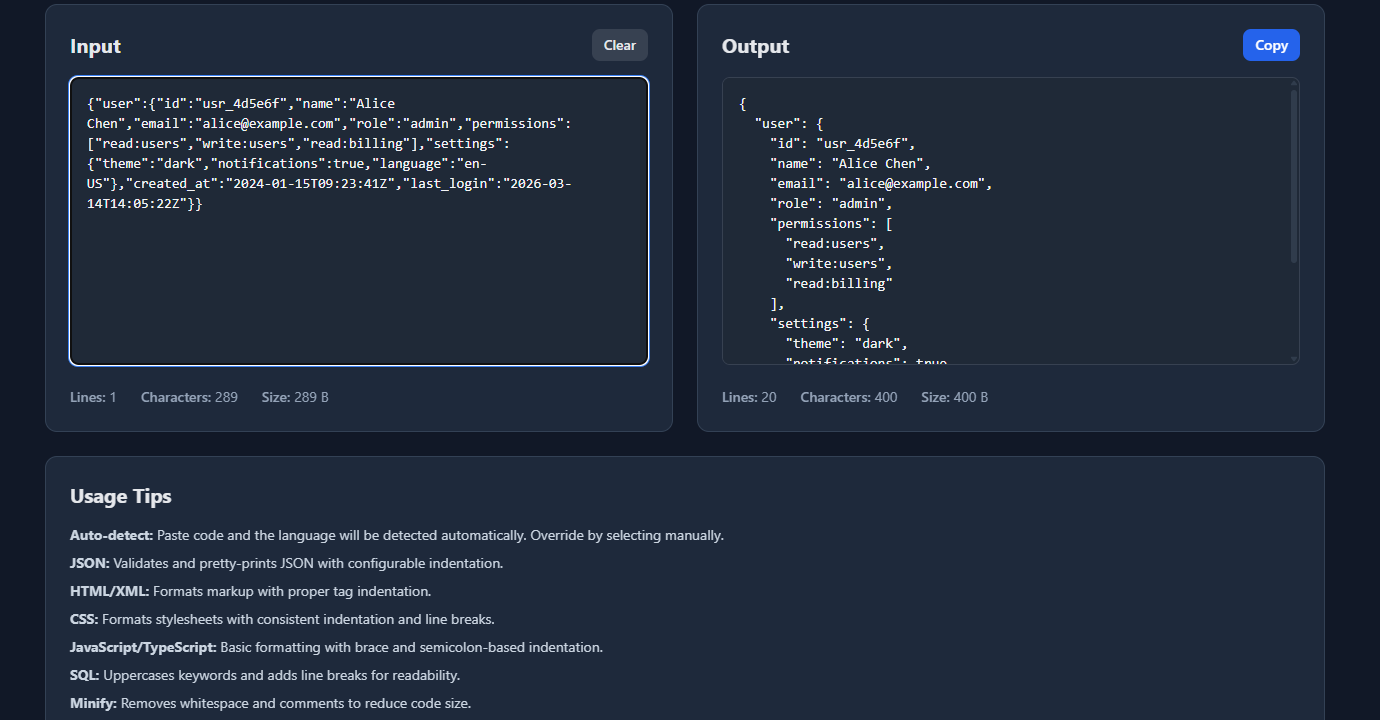
Auto-detect mode identifies JSON automatically, so you don’t need to select the language manually in most cases.
Command line with jq
jq is the standard JSON CLI tool. The identity filter . formats and pretty-prints:
# Format from a file
jq . response.json

# Format piped input
curl -s https://api.example.com/users | jq .

# Format with 4-space indent (default is 2)
jq --indent 4 . response.json

# Format and sort keys
jq --sort-keys . response.json

# Compact (minify) instead of format
jq -c . response.json
jq also validates JSON as a side effect — it exits with a non-zero code if the input is invalid.
Python one-liner
Python’s json.tool module formats JSON without any install:
# From a file
python -m json.tool response.json

# From stdin
echo '{"name":"Alice","role":"admin"}' | python -m json.tool

# With sorted keys
python -m json.tool --sort-keys response.json

# With custom indent
python -m json.tool --indent 4 response.json
This works on any machine with Python (which is essentially everywhere), making it the most portable option.
JavaScript / Node.js
JSON.stringify accepts indent as the third argument:
// Format with 2-space indent
const formatted = JSON.stringify(data, null, 2);

// Format with 4-space indent
const formatted = JSON.stringify(data, null, 4);

// Format with tab indent
const formatted = JSON.stringify(data, null, '\t');

// Format and sort keys
const formatted = JSON.stringify(
  Object.fromEntries(Object.entries(data).sort()),
  null,
  2
);
As a Node.js one-liner:
node -e "const d=require('./response.json'); console.log(JSON.stringify(d,null,2))"In your editor
Most editors format JSON on save or with a keyboard shortcut:
- VS Code:
Shift+Alt+F(Format Document) — uses Prettier or the built-in formatter - JetBrains IDEs:
Ctrl+Alt+L(Reformat Code) - Vim:
:%!jq .— pipe the buffer through jq
For VS Code, add this to settings.json to auto-format JSON on save:
{
  "[json]": {
    "editor.formatOnSave": true,
    "editor.defaultFormatter": "esbenp.prettier-vscode"
  }
}
Formatting decisions that matter
2 spaces vs 4 spaces
This is mostly a style preference, but it has practical implications:
- 2 spaces: standard for JSON config files (
package.json,.eslintrc,tsconfig.json), API responses sent over the wire, and most JavaScript/TypeScript codebases - 4 spaces: common in Python projects (matches PEP 8), Java configs, and codebases that prefer wider indentation for readability
When generating JSON that will be stored in version control (config files, fixtures), pick one and enforce it with a formatter — inconsistent indentation creates noisy diffs.
Sorting keys
By default, most formatters preserve the original key order. Sorted keys are useful when:
- You’re diffing two JSON documents that may have keys in different orders
- You want stable, deterministic output for checksums or hashing
- You’re writing test fixtures where key order shouldn’t matter
jq --sort-keys and python -m json.tool --sort-keys both sort alphabetically. JSON.stringify with a custom replacer can sort keys programmatically.
Note: JSON objects are unordered by spec, so sorted output is equivalent to unsorted for any conforming parser. It’s a human-readability and diffability choice.
Formatting for wire transfer vs storage
Formatted JSON is larger than minified. A 1KB minified payload might be 1.6KB formatted. For high-volume API responses or log entries, minifying saves bandwidth and storage. For config files checked into version control or test fixtures, formatted JSON is worth the size — readability and reviewability matter more than byte count.
The practical rule: minify for transport, format for storage and review.
Common JSON formatting problems
“My formatter says the JSON is invalid”
Formatting requires valid JSON. Common syntax errors that block formatting: trailing commas (after the last element in an object or array), single-quoted strings instead of double quotes, unquoted keys, JavaScript comments (// or /* */). See Common JSON Errors and How to Debug Them for a full breakdown of each error type and how to fix them.
“My formatted JSON won’t round-trip through JSON.parse identically”
If you’re seeing numbers change (e.g., very large integers lose precision), that’s a JavaScript float issue, not a formatting issue. JavaScript’s JSON.parse represents all numbers as 64-bit floats, which can’t exactly represent integers larger than Number.MAX_SAFE_INTEGER (9,007,199,254,740,991). Consider using a BigInt-aware JSON library for IDs or timestamps that exceed this range.
“Keys are in a different order after formatting”
JSON objects are unordered by spec, and formatters may or may not preserve insertion order. If key order matters for your use case (e.g., for a hash or signature), use --sort-keys to enforce consistent ordering, or treat order as significant in your application rather than relying on formatter behavior.
“My JSON has Unicode characters that look different after formatting”
Some formatters escape non-ASCII characters as \uXXXX sequences; others preserve them as-is. Both are valid JSON. If you need to control this behavior, use json.dumps(data, ensure_ascii=False) in Python, or JSON.stringify (which preserves Unicode by default in JavaScript).
FAQ
What’s the difference between JSON formatting and JSON validation?
Validation checks whether a string is valid JSON — correct syntax, no trailing commas, properly escaped strings. Formatting assumes valid JSON and changes its presentation. A formatter that validates as a side effect (like jq) will reject invalid input before formatting. How to Validate JSON Online covers validation in detail.
Does JSON formatting change the data?
No. Formatting only changes whitespace — indentation and newlines. The parsed result of JSON.parse(minified) and JSON.parse(formatted) is identical. The only exception is key ordering, if your formatter sorts keys — but since JSON objects are unordered by spec, this doesn’t change the data semantically.
What’s the best JSON formatter for the command line?
jq is the standard — it formats, validates, queries, and transforms JSON. Install it with brew install jq, apt install jq, or choco install jq. If jq isn’t available, python -m json.tool works on any machine with Python and requires no install.
How do I format JSON in VS Code?
Open the JSON file or paste JSON into an editor tab, then press Shift+Alt+F (Windows/Linux) or Shift+Option+F (Mac). If VS Code prompts you to select a formatter, choose Prettier or the built-in JSON formatter. For auto-format on save, add "editor.formatOnSave": true to your settings.json inside a [json] block.
How do I minify (compact) JSON?
jq -c . outputs compact JSON. python -m json.tool doesn’t have a minify mode, but python -c "import json,sys; print(json.dumps(json.load(sys.stdin)))" works. In JavaScript: JSON.stringify(JSON.parse(formatted)) (no indent argument) produces compact output. GoGood.dev Code Formatter also has a Minify mode alongside Format.
Formatted JSON isn’t just easier to read — it’s a prerequisite for effective debugging. Once you can see the structure, spotting what’s wrong takes seconds instead of minutes. Build formatting into your workflow: format API responses before reading them, format test fixtures before committing them, and use sorted keys when diffing.
For next steps: How to Validate JSON Online covers catching syntax errors before they surface as cryptic runtime failures, and How to Find Exactly What Changed in a JSON Payload shows how to diff formatted JSON to surface structural differences at a glance.