JSON Inline Diff: When to Switch from Side-by-Side View
Side-by-side isn't always the right JSON diff view. Learn when inline diff gives you faster, clearer results — and how to switch in seconds.
Most JSON diff tools default to side-by-side view. Two panels, original on the left, modified on the right. It works well for short documents — but pull up a 400-line API response and suddenly you’re scrolling back and forth across two columns trying to find which of the 20 lines that moved are actually different.
That’s the moment to switch views. The inline diff takes a different approach: instead of showing both full documents, it shows only what changed — as a structured table with the JSON path, the type of change, and the old and new values side by side. Every difference in one compact list, no scrolling through unchanged lines.
TL;DR: Use side-by-side when you want to scan both full documents in parallel. Switch to inline diff in GoGood.dev JSON Compare when you just want a list of exactly what changed — especially on long documents or when sharing a summary of differences.
What Is the JSON Inline Diff View
The inline diff view drops the two full-document panels and replaces them with a structured table. Each row is a single change, with four columns:
- Path — the dot-notation path to the changed field (e.g.,
user.role,meta.requestId,user.permissions[1]) - Change — whether the field was
added,removed, ormodified - Original — the value before the change (empty for added fields)
- Modified — the value after the change (empty for removed fields)
If six things changed in a 300-line document, you see exactly six rows. Nothing else. No unchanged lines to scroll past.
This is different from a git-style unified diff, which shows the full document with + and - prefixes on changed lines. The path-based table is more useful for JSON specifically because it tells you exactly where in the object tree the change happened — without you having to count levels of nesting.
Side-by-Side vs Inline — Key Differences
Side-by-side renders both complete documents. You see every line of both, with changed lines highlighted. Inline renders only the differences, organized by JSON path.
| Side-by-side | Inline (path table) | |
|---|---|---|
| Short JSON (< 30 lines) | ✅ Easy to scan | ✅ Works fine |
| Long JSON (100+ lines) | ⚠️ Lots of scrolling | ✅ Only shows what changed |
| Few changes, scattered | ⚠️ Easy to miss | ✅ All changes listed |
| Many changes, dense | ✅ See full context | ⚠️ Long table |
| Need exact JSON path | ❌ Must count manually | ✅ Path shown directly |
| Sharing diff as summary | ❌ Doesn’t translate to text | ✅ Table is self-contained |
| Code review context | ✅ See surrounding code | ⚠️ No surrounding context |
When to Use Inline JSON Diff
You have a long document with a few scattered changes. If a 200-line API response changed in three places, side-by-side means scrolling through 197 unchanged lines to find them. Inline shows exactly three rows.
You need the exact JSON path to the changed field. When you’re writing code to fix a broken response — updating a selector, patching a field in a test fixture, adding a mapping in a serializer — you need the path. user.permissions[1] is immediately actionable. Having to count nesting levels in a side-by-side view to find the same path wastes time.
You’re sharing a diff summary with someone. A six-row table pastes cleanly into a Slack message, GitHub comment, or Jira ticket. A side-by-side diff is a UI construct that doesn’t travel well as text.
You want a quick count of what changed. The table makes it instantly obvious whether you’re looking at 2 changes or 22. Side-by-side requires you to scan the whole document to get that sense.
You’re validating an API version bump. Third-party API changelogs are often incomplete. Call both endpoints, diff the responses, switch to inline view — the table gives you an auditable list of every field that changed, added, or disappeared.
How to Switch Views in GoGood.dev JSON Compare
Paste both JSON documents into GoGood.dev JSON Compare. The diff runs automatically and defaults to side-by-side.
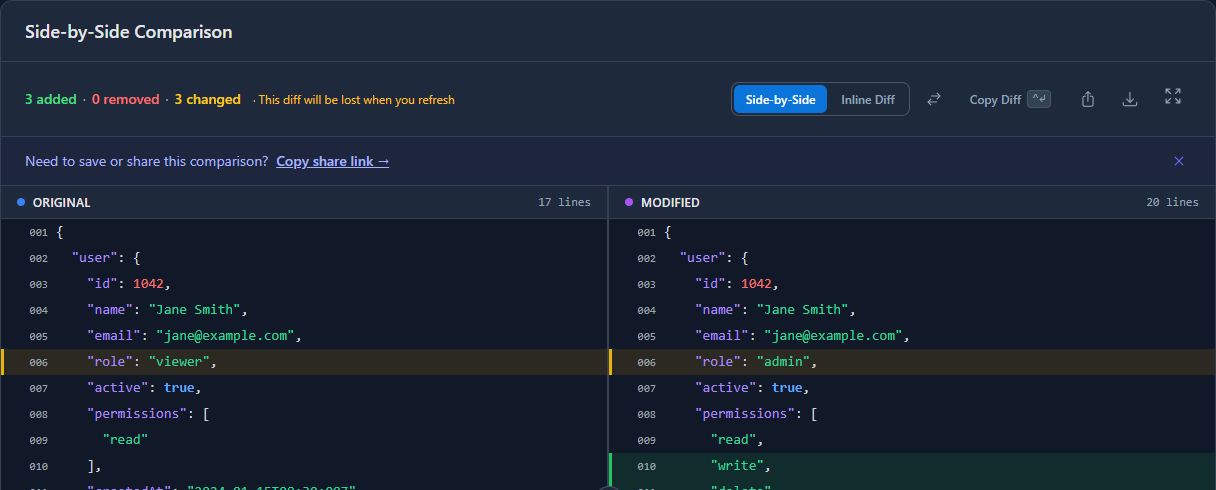
Click the Inline Diff button in the toolbar above the comparison panel. The view switches instantly to a path-based table:
![GoGood.dev JSON Compare inline diff view — table showing 6 changes: meta.requestId and meta.version modified, user.lastLogin, permissions[1], permissions[2] added, user.role changed viewer to admin](/blog/images/json-inline-diff-when-to-switch/step-2-inline-diff-result.png)
Each row shows the full dot-notation path, the change type (modified in amber, added in green, removed in red), and the before/after values. Click Side-by-Side in the same toolbar to switch back. Both views work from the same comparison — no repasting.
Common Issues When Using Inline Diff
“I can’t see the surrounding context for a change.” That’s the trade-off of the inline view — it only shows changed fields, not their neighbours. If you need to see what surrounds a change (the parent object, sibling keys), switch back to side-by-side. Both views are one click away.
“Array indexes in the path look wrong.” If the API reordered an array before adding to it, user.permissions[1] in the inline view refers to the new index, not the original. Sort arrays by a stable key before diffing if you need index-stable comparison.
“The table has too many rows to read.” If there are 40+ changes, the inline table can itself become hard to scan. In this case, look at the path column — group rows by the first path segment (e.g., all user.* changes together) to find the area you care about. Or use side-by-side to look at that specific nested object in context.
“I need to diff but don’t have a browser open.” For terminal-based inline diff, json-diff is the right tool:
npm install -g json-diff
json-diff response-v1.json response-v2.json
It outputs a unified diff-style result with +/- prefixes, which reads like git diff output in the terminal.
Tools That Support Inline JSON Diff
GoGood.dev JSON Compare — browser-based, instant toggle between side-by-side and inline path table. Shows dot-notation paths, change types, and before/after values. No install, nothing sent to a server.
json-diff (Node.js) — terminal inline diff with +/- line markers. Good for CI pipelines and scripting:
# Install once
npm install -g json-diff

# Compare two response files
json-diff api-v1.json api-v2.json
jq + diff — for preprocessing before comparing. Sort keys and normalize arrays, then feed into a standard diff:
jq -S '.' response-v1.json > v1-sorted.json
jq -S '.' response-v2.json > v2-sorted.json
diff v1-sorted.json v2-sorted.json
The -S flag on jq sorts keys alphabetically, which eliminates false positives from key reordering.
For ad-hoc work the browser tool is faster — no setup, instant results. For automated regression detection in CI, script it with json-diff.
FAQ
What is the difference between inline diff and side-by-side diff for JSON?
Side-by-side shows both complete documents in two parallel columns, with changed lines highlighted where they align. Inline diff shows only the differences — in GoGood.dev JSON Compare, as a path-based table listing each changed field, its change type, and the old and new values. Side-by-side is better for reading context; inline is better for scanning what changed.
When should I use inline diff instead of side-by-side?
Use inline when the document is long, changes are scattered, you need the exact JSON path to each changed field, or you want to share a summary of differences. Use side-by-side when you want to read both versions in parallel or need to see the context around a change.
Does inline diff work for nested JSON objects?
Yes. GoGood.dev JSON Compare shows the full dot-notation path for every change, including deeply nested fields — user.address.city, items[3].price, and so on. You don’t have to count nesting levels manually.
How do I switch between inline and side-by-side in GoGood.dev JSON Compare?
After the diff runs, use the Side-by-Side and Inline Diff toggle buttons in the toolbar above the comparison panel. The switch is instant — no need to repaste your JSON.
Can I use inline diff in a CI pipeline?
Yes, but not via a browser tool. Use the json-diff npm package in a Node.js script to compare JSON files and fail the build if the diff is non-empty. See How to Compare JSON API Responses During Development for the full CI pattern, including the json-diff script.
Both views exist because different situations call for different layouts. Side-by-side when you want the full picture; inline when you want just the list of changes. GoGood.dev JSON Compare keeps both a single click apart — paste once, switch freely.
Related: How to Compare JSON API Responses During Development